Computer Practical Copy Class 9: Complete Guide
A computer practical copy looks different from a science copy, because the work happens on screen rather than at a bench. Instead of readings and chemical observations, it records tasks performed, steps followed, programs written, and outputs produced. Examiners judge it on whether the steps are clear enough to follow, the output is shown properly, and the student understands what each task or program does. This guide explains the full format for a Class 9 computer practical copy, covering word processing, spreadsheets, presentations, and simple programming tasks, so every page reads as a clear record of real computer work.
How a Computer Copy Differs from a Science Copy
In a science copy, the observation table proves the experiment happened. In a computer copy, the output proves the task happened, so showing output matters more than describing it. Each task should record the aim, the steps you followed, and the result you obtained, with the output either pasted as a printout or drawn as a clear representation of the screen result. A task described without any output looks unfinished, while a task with a neat output and a short explanation looks complete and convincing.
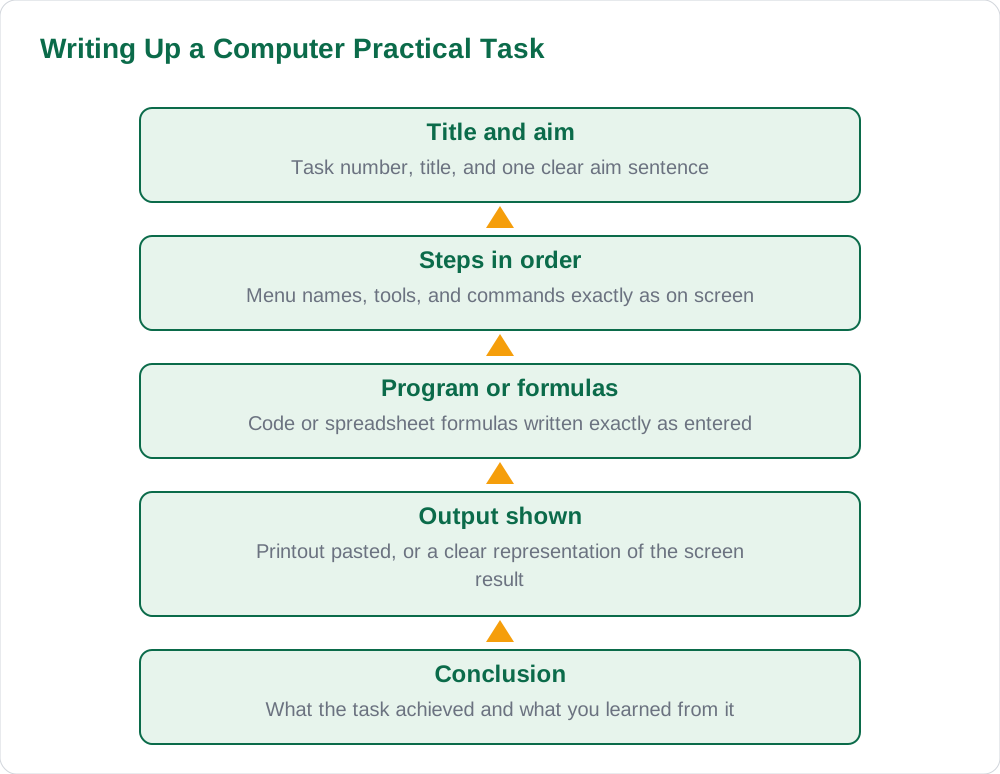
The language of a computer copy is also different: it uses the names of menus, tools, and commands exactly as they appear on screen, so the examiner can follow the steps. Write steps as actions, such as selecting a menu, applying a formatting option, or entering a formula, rather than vague phrases like did the work. Keep the same skeleton for every task: title, aim, steps, output, and conclusion. That consistency makes the copy easy to mark and shows a systematic approach to practical work. For supporting study material, see the book collection and the solved notes.
Word Processing, Spreadsheets, and Presentations
For word processing tasks, record the aim, such as formatting a document or creating a table, then list the steps in order: opening the document, selecting text, applying formatting, inserting the table or image, and saving the file. Show the output by pasting a printout or drawing a small representation of the finished document, and note the formatting choices you made, such as font, alignment, or table style. The examiner wants to see that you know which tool does what, not just that a document exists.
Spreadsheet tasks need a table of the data entered, the formulas used, and the results produced. Write each formula exactly as entered, and show the resulting values in a small table that matches the screen output. For presentations, record the aim, the number of slides, the layout and design choices, and any animation or transition applied, with a small sketch or printout of key slides. In all three kinds of task, name the software features you used precisely, because correct terminology is part of what is being tested.
Writing Up Programming Tasks
Programming tasks in Class 9 usually involve writing a short program, running it, and recording the output. The write-up should show the problem statement, the program itself written neatly with proper indentation, and the output produced for sample input. Write the program exactly as you entered it, including correct spelling of commands and proper indentation, because a program copied carelessly with errors looks like it was never run. If the program produced an error at first, noting the error and the correction shows genuine debugging, which examiners value.
Explain the program briefly after the code: what each main part does, in one or two lines per part, rather than repeating every line. Then show the output for at least one set of sample inputs, labelled clearly as sample input and output, and finish with a conclusion stating what the program achieves. Keep programs in a fixed-width style of handwriting, one statement per line, so they are easy to read. A program page that is neat, correct, and matched by real output is the strongest page in a computer copy.
Presenting Output: Printouts and Drawings
Output is the evidence of computer practical work, so present it carefully. Where printouts are allowed, paste them neatly, trimmed to size, with a caption stating the task they belong to. Where printouts are not used, draw a clear representation of the output: a table for spreadsheet results, a sketch of slides for a presentation, or the exact text of a program's output. Label every output with the task number so the examiner can match output to task without hunting through the copy.
Avoid the common fault of pasting output without any explanation, or writing steps without showing any result. The two belong together: steps show what you did, output shows what it produced. Also keep file names and save locations in your notes where relevant, because recording that you saved the work correctly is part of good computer practice. Check each task page before moving on: aim, steps, program or formulas, output, and conclusion, all present and matched to each other.
Common Mistakes in a Computer Copy
The most common mistake is writing steps from memory without performing the task, which produces menu names and options that do not exist or steps in the wrong order. Always perform the task first, note the steps as you go, and then write the copy from those notes. A second mistake is showing output that does not match the steps, such as a spreadsheet table with values the formulas cannot produce, which examiners notice quickly. A third is untidy program writing: no indentation, statements crammed together, or code copied with spelling errors.
Other errors include missing conclusions, tasks without titles or numbers, and printouts pasted without captions or in the wrong order. Keep tasks in the order your teacher assigned them, number every task, and give every output a caption. A final check helps: read each page as if you were the examiner, asking whether the steps could be followed and whether the output proves the task was done. If either answer is no, fix that page before moving on.
AI Help: Muse AI
Muse AI is Meta's personal AI assistant, and it can help with a computer practical copy by explaining a software feature in plain words, suggesting clear steps for a task, or helping you understand what a short program does line by line. For example, you can ask it to explain a spreadsheet formula or how to lay out a presentation, then write the steps in your own words in your copy. Join Muse with invite code LTGSWD — in the Muse app, go to Settings > Redeem token and enter the code. Disclosure: LTGSWD is the author's Muse invite code. Muse AI does not give official Sindh Textbook Board answers — always verify against your Sindh Textbook Board book and your teacher.
5 key points you must know
- Use the same skeleton for every task: title, aim, steps, output, and conclusion.
- Write menu names, tools, and commands exactly as they appear on screen.
- Show output for every task, pasted as a printout or drawn clearly, with a caption.
- Write programs exactly as entered, with proper indentation and sample input and output.
- Perform each task first and note steps as you go, never from memory afterwards.
Frequently asked questions
Do I need a printout for every computer task?
Output is required for every task, but it does not always have to be a printout. A clear drawn representation, such as a spreadsheet results table or the exact text of a program's output, works where printouts are not used. Label it with the task number either way.
How do I write a program in the copy?
Write it exactly as entered, one statement per line, with proper indentation and correct spelling of commands. Follow it with a brief explanation of the main parts and the output for sample input. A program that matches its output proves it was actually run.
What if my program had an error?
Note the error and the correction briefly; this shows real debugging and is a strength, not a weakness. Examiners value a corrected program with matching output far more than a perfect-looking program that was never run.
How detailed should Office task steps be?
Detailed enough for someone else to repeat the task: name the menu, the option chosen, and the result at each stage. Avoid vague phrases like formatted the document; instead, say which formatting was applied and where.
Should tasks be in a particular order?
Keep tasks in the order your teacher assigned them, numbered throughout, with each output captioned and matched to its task. A copy in assignment order is far easier to mark than one rearranged by topic or difficulty.
Solved notes — preview free
These guides work best with the solved exercises. Preview the solved notes free on this website — 119 solved notes for Classes 6–10 in Sindhi, Urdu, English and Arabic medium. Or browse the full solved notes catalogue for your class and medium. New solved notes are added regularly — check the catalogue for coming-soon books.