Windows Basics and Shortcuts Students Actually Use
Windows is the operating system most school computers run, and knowing its basics makes every other computer task easier. Students who understand the desktop, the Start menu, and how windows work can open programs, manage files, and switch between tasks without frustration. Keyboard shortcuts take this further: a few key combinations can replace slow mouse movements and save minutes on every assignment. This guide covers the Windows basics every student should know, the shortcuts that are actually useful for schoolwork, and the habits that keep a shared computer running smoothly.
The Desktop, Taskbar and Start Menu
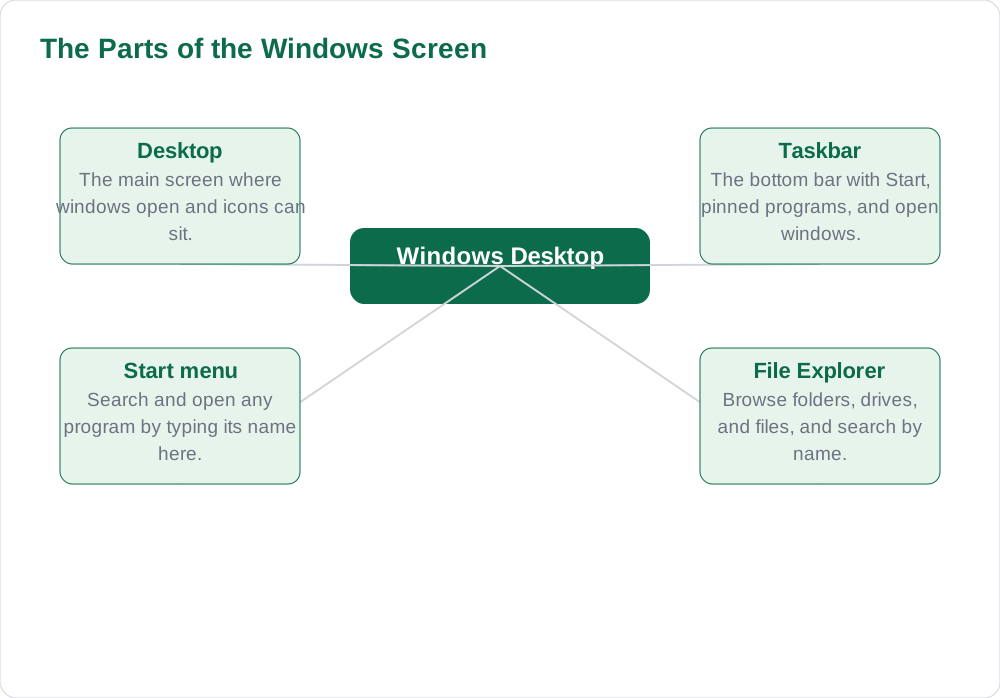
When Windows starts, you see the desktop, which is the main screen where your work happens. At the bottom of the screen sits the taskbar, a bar that shows the Start button, icons for pinned programs, buttons for every open window, and the clock and system icons on the right. Clicking a taskbar button switches to that window, which is how you move between a Word document and a browser without closing anything. Right-clicking the taskbar or an empty desktop area opens a menu of useful options, such as display settings and personalisation.
The Start menu, opened by clicking the Windows logo or pressing the Windows key, is your gateway to programs and files. You can type the name of a program, such as Word or Paint, right after opening the Start menu, and Windows will find it for you, which is much faster than hunting through lists. Pinned programs stay on the Start menu or taskbar for quick access, so pin the programs you use most, such as your word processor and browser. Learning to search from the Start menu is one of the fastest ways to feel confident on any Windows computer.
Windows, Files and File Explorer
A window is a rectangular area that holds one program or folder, and managing windows is a core Windows skill. The three buttons at the top right of every window minimise it to the taskbar, maximise it to fill the screen, or close it. You can drag a window by its title bar to move it, drag its edges to resize it, and snap it to half the screen by dragging it to the left or right edge, which is perfect for comparing two documents side by side. Closing a window does not always close the program, so check the taskbar if a program seems to have vanished.
File Explorer is the program for browsing files and folders, and you can open it from the taskbar or with the shortcut Windows key + E. On the left, Quick Access shows folders you use often, and This PC shows your drives and main folders such as Documents, Pictures, and Downloads. Use the address bar at the top to move between folders, and the search box at the top right to find a file by name. For a full guide to organising your files, see the resources on Solved Notes and Books.
The Shortcuts Every Student Should Know
Keyboard shortcuts use the Ctrl, Alt, Windows, or Shift key combined with another key, and they replace slow mouse work with instant actions. The most useful set for schoolwork is the editing group: Ctrl + C copies, Ctrl + X cuts, Ctrl + V pastes, Ctrl + Z undoes, and Ctrl + Y redoes. These five shortcuts alone will speed up every writing and editing task you do. Add Ctrl + S to save, Ctrl + P to print, Ctrl + A to select everything, and Ctrl + F to find a word in a document, and you have a toolkit that covers most daily needs.
Window shortcuts are just as valuable. Alt + Tab switches between open programs, Windows key + D shows the desktop instantly, and Windows key + E opens File Explorer. In a browser, Ctrl + T opens a new tab and Ctrl + W closes the current one. You do not need to learn all of these at once: pick two or three, use them every day until they feel automatic, and then add more. Students who master even ten shortcuts finish computer work noticeably faster and with less mouse strain than students who click through menus for everything.
Copy, Paste and Moving Text Safely
Copy and paste are powerful, but they need care. To copy text, select it first by dragging across it, then press Ctrl + C; to move it instead, press Ctrl + X, which removes it from the original place. Click where you want the text to go and press Ctrl + V to paste it. Always check the pasted text afterwards, because formatting from another document or website can arrive with it, changing fonts and sizes unexpectedly. In Word, the paste options menu lets you paste text only, without the original formatting, which keeps your document consistent.
Copying also raises an honesty question that students must understand. Copying someone else's writing from the internet and submitting it as your own work is plagiarism, and teachers can detect it easily. Use copy and paste for your own notes, for moving your own sentences around, and for short quotations that you credit properly, but always write schoolwork in your own words. Learning this distinction early protects your grades and builds the writing skill that examinations actually test.
Good Habits on a Shared School Computer
School computers are shared, so good habits protect both you and the next user. Always sign out of your accounts when you finish, never save passwords on a shared computer, and save your work in your own folder or on your own storage device rather than leaving it on the desktop. If a program freezes, wait a few moments before forcing it to close, and if the computer itself stops responding, tell your teacher rather than pressing buttons at random. Restarting a computer fixes many small problems, but only do so when your teacher approves, since other students may have unsaved work open.
Keep the desktop tidy by deleting files you no longer need and emptying the Recycle Bin occasionally, but never delete files that belong to someone else. If you find another student's work open on a computer, close it without reading or changing it. Respect, careful saving, and a handful of shortcuts are the whole secret of using Windows well at school. For more computer guides, visit the [home page](/), Solved Notes, and the blog.
AI Help: Muse AI
Muse AI is Meta's personal AI assistant, and it can help you learn Windows by explaining a shortcut, a menu, or a computer problem in simple step-by-step words. You can ask it which shortcut saves a file, how to find a lost document, or how to organise your folders for a new school term. Muse AI does not give official STBB answers — always verify against your STBB book and your teacher. Always verify against your Sindh Textbook Board book and your teacher before using anything in classwork.
Join Muse with invite code LTGSWD — in the Muse app, go to Settings > Redeem token and enter the code. Disclosure: LTGSWD is the author's Muse invite code.
5 key points you must know
- The taskbar shows open windows; the Start menu finds any program by typing its name.
- Ctrl + C, Ctrl + X, Ctrl + V, Ctrl + Z, and Ctrl + S cover most editing tasks.
- Alt + Tab switches programs; Windows key + D shows the desktop instantly.
- Select text before copying, and check pasted formatting in your document.
- On shared computers, sign out, save in your own folder, and never save passwords.
Frequently asked questions
How do I open a program quickly in Windows?
Click the Start button or press the Windows key, then type the program's name, such as Word or Paint, and press Enter. Windows searches as you type, which is much faster than browsing through menus. Pin the programs you use most to the taskbar or Start menu so they are always one click away.
What do Ctrl + C, Ctrl + V, and Ctrl + Z do?
Ctrl + C copies selected text or a file, Ctrl + V pastes it at the cursor position, and Ctrl + Z undoes your last action. Ctrl + X cuts instead of copying, removing the item from its original place. These shortcuts work in almost every Windows program, so learning them once helps you everywhere.
How do I switch between two open windows?
Hold Alt and press Tab to switch between open programs, or click the program's button on the taskbar. You can also snap two windows side by side by dragging each to the left or right edge of the screen, which is useful when comparing a question paper with your answer document.
Where do I find my saved files?
Open File Explorer with Windows key + E and look in Documents, Downloads, or the folder you saved to. Use the search box at the top right of File Explorer and type part of the file name if you cannot remember the folder. Saving schoolwork in a subject folder from the start prevents most lost-file problems.
What should I do if a program freezes?
Wait a few moments first, because the program may recover on its own. If it stays frozen, tell your teacher rather than pressing buttons at random, and do not restart a shared computer without permission, since other students may have unsaved work open. Save your work often with Ctrl + S so a freeze never costs you much.
Solved notes — preview free
These guides work best with the solved exercises. Preview the solved notes free on this website — 119 solved notes for Classes 6–10 in Sindhi, Urdu, English and Arabic medium. Or browse the full solved notes catalogue for your class and medium. New solved notes are added regularly — check the catalogue for coming-soon books.