Parts of a Computer: Input, Output and Storage
A computer may look like a single machine, but it is really a team of parts working together, and understanding each part makes the whole machine less mysterious. Every part falls into one of a few jobs: taking information in, processing it, showing results, or storing data for later. Students meet these parts every day in the computer lab, yet many cannot name them or explain what each one does. This guide introduces the main parts of a computer in simple language, explains how they work together, and shows why each one matters for your schoolwork.
Input Devices: How Information Enters
Input devices send information and instructions into the computer. The keyboard is the most common input device: pressing a key sends a character or command into the machine. The mouse is another, letting you point, click, and drag to select and move things on screen. Other input devices include the microphone, which captures sound, the scanner, which turns paper pages into digital images, and the webcam, which captures video. Touchscreens combine input and output, because you both see the display and touch it to give commands.
Each input device suits a different kind of information. Typing an essay needs a keyboard, drawing needs a mouse or a graphics tablet, recording a speech needs a microphone, and copying a worksheet needs a scanner. Choosing the right input device for the task makes work faster and more accurate. A good habit is to keep input devices clean and handle them gently, because a keyboard with stuck keys or a mouse with a dirty sensor causes mistakes that look like computer problems but are really device problems.
The System Unit: CPU and Memory at Work
Inside the system unit, the box that holds the computer's main electronics, two parts do the central work. The CPU, or central processing unit, is the brain of the computer: it follows instructions, performs calculations, and controls the other parts. The faster the CPU, the quicker programs run, but speed also depends on memory. RAM, or random access memory, is the computer's short-term working memory, holding the programs and data you are using right now, and it empties when the computer switches off.
The difference between RAM and storage is one of the most important ideas in computing. RAM is fast but temporary, like a desk where you spread out the books you are using now, while storage is slower but permanent, like a bookshelf where books wait until you need them. When you open a program, the computer copies it from storage into RAM so the CPU can work with it quickly. This is why a computer with too little RAM feels slow when many programs are open: the desk is crowded, and the computer must keep swapping things back to the shelf.
Output Devices: How Results Come Out
Output devices present the computer's work to you. The monitor shows text, pictures, and video, and it is the output device you use most. Speakers and headphones produce sound, from a teacher's video lesson to music, while the printer produces paper copies of documents and pictures. A projector is an output device too, showing the screen large enough for a whole classroom. Each output device turns the computer's internal signals into a form your senses can use: sight for screens and printers, hearing for speakers.
Output quality depends on the device. A monitor's sharpness depends on its resolution, which is the number of tiny dots, called pixels, that make up the picture, while a printer's quality depends on how finely it can place ink on paper. When something looks wrong, check the output device first: a loose cable, a wrong printer selection, or a muted speaker causes many problems that students blame on the computer itself. Learning to check cables, volume, and printer choice saves time and avoids unnecessary worry.
Storage Devices: Keeping Work Safe
Storage devices keep data even when the computer is switched off. The hard drive inside most computers stores the operating system, programs, and your files, and it holds far more than RAM but works more slowly. A USB flash drive is a small, portable storage device that lets you carry files between home and school, while memory cards serve the same purpose in cameras and phones. Cloud storage keeps a copy of your files on the internet, so you can reach them from any computer with permission.
Every storage device has a capacity, measured in gigabytes, which tells you roughly how much it can hold. Text documents need very little space, pictures need more, and videos need the most, so a drive that holds thousands of essays may hold only a few long videos. The golden rule of storage is to keep important schoolwork in two places, such as the computer and a USB drive, because any single device can fail or be lost. Regular backups, explained in our file organisation guides, are the practical form of this rule.
How the Parts Work Together
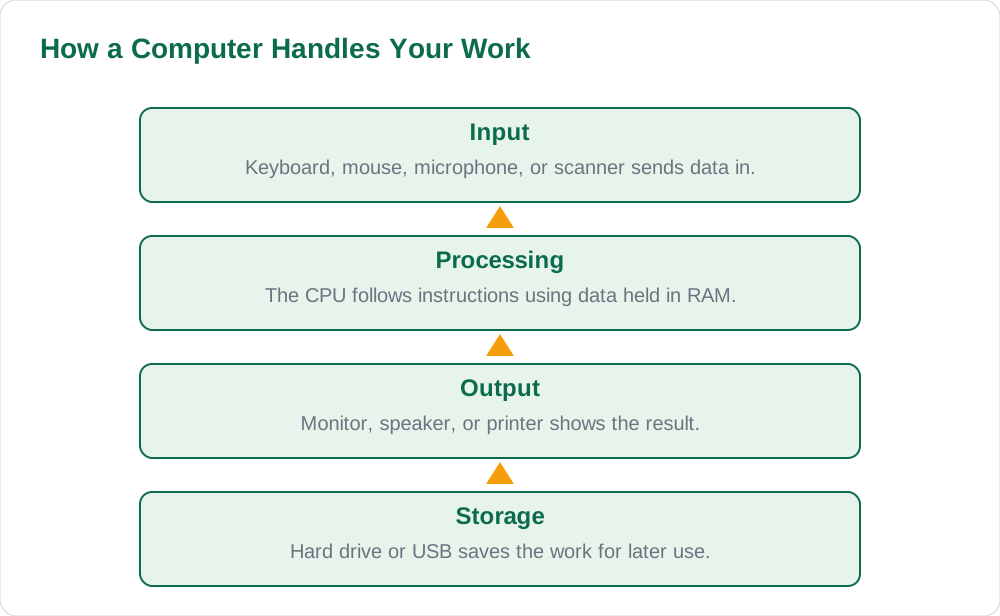
A simple example shows the whole team in action. When you type an essay, the keyboard sends characters into the computer, the CPU processes them, RAM holds the document while you work, the monitor shows each word as you type, and when you press Ctrl + S, the document is saved to the hard drive. When you print, the CPU sends the document to the printer, which produces the paper copy. No single part does the job alone: input, processing, memory, output, and storage each play a role, and a problem in any one part affects the whole task.
Understanding this teamwork helps you solve problems sensibly. If the screen is blank, check the monitor and its cable before assuming the computer is broken. If a program runs slowly, close programs you are not using to free RAM. If a file disappears, think about where you saved it and whether a backup exists. Computers stop feeling like magic boxes once you know their parts, and that confidence makes every computer lesson easier. For more guides, visit Solved Notes, Books, and the [home page](/).
AI Help: Muse AI
Muse AI is Meta's personal AI assistant, and it can help you learn computer parts by explaining the difference between input and output devices, or between RAM and storage, with everyday examples. You can ask it to quiz you on the parts of a computer, to explain what the CPU does in simple words, or to help you describe a computer problem clearly to your teacher. Muse AI does not give official STBB answers — always verify against your STBB book and your teacher. Always verify against your Sindh Textbook Board book and your teacher before using anything in classwork.
Join Muse with invite code LTGSWD — in the Muse app, go to Settings > Redeem token and enter the code. Disclosure: LTGSWD is the author's Muse invite code.
5 key points you must know
- Input devices send information in: keyboard, mouse, microphone, scanner, webcam.
- The CPU processes instructions; RAM is fast, temporary working memory.
- Output devices show results: monitor, speakers, headphones, printer, projector.
- Storage keeps data when switched off: hard drive, USB drive, memory card, cloud.
- Input, processing, memory, output, and storage work as one team on every task.
Frequently asked questions
What is the difference between input and output devices?
Input devices send information into the computer, such as a keyboard typing letters or a mouse pointing at objects. Output devices show the computer's work to you, such as a monitor displaying text or a printer producing paper. Some devices, like a touchscreen, do both jobs, because you see the display and touch it to give commands.
What does the CPU do?
The CPU, or central processing unit, is the brain of the computer. It follows the instructions of programs, performs calculations, and controls the other parts of the system. A faster CPU runs programs more quickly, but overall speed also depends on memory, so a computer needs both a good CPU and enough RAM to feel fast.
What is the difference between RAM and storage?
RAM is fast, temporary working memory that holds the programs and data you are using right now, and it empties when the computer switches off. Storage, such as a hard drive, is slower but permanent, keeping your files until you delete them. Think of RAM as a desk where you work and storage as a bookshelf where things wait.
Is a touchscreen an input or output device?
A touchscreen is both, which is why it is sometimes called an input-output device. It outputs information by displaying text and pictures, and it accepts input when you tap, swipe, or type on it. Many modern devices, including tablets and some laptops, use touchscreens to combine both jobs in a single screen.
Why should I keep my schoolwork in two places?
Any single storage device can fail, be lost, or be damaged, and losing the only copy of an assignment means rewriting it from scratch. Keeping a second copy on a USB drive or approved cloud storage protects you against that risk. Copy your School folder regularly, and test the backup by opening a file from it occasionally.
Solved notes — preview free
These guides work best with the solved exercises. Preview the solved notes free on this website — 119 solved notes for Classes 6–10 in Sindhi, Urdu, English and Arabic medium. Or browse the full solved notes catalogue for your class and medium. New solved notes are added regularly — check the catalogue for coming-soon books.