Paint and Draw: Shapes, Colours and First Digital Art

Drawing on a computer is a wonderful first step into digital creativity, because it needs no expensive materials and every mistake can be undone with a single click. A simple paint program lets you draw shapes, fill them with colour, add text, and save a picture you can print or show to your class. Many students open a paint program, scribble randomly, and close it without learning anything, but a little structure turns play into real skill. This guide teaches you the tools that matter, how to draw neat shapes and scenes, and how to save and present your digital art properly.
Opening Paint and Knowing the Tools
Most Windows computers include a simple paint program, which you can open from the Start menu by searching for Paint. The window has three main areas: a blank canvas in the middle where you draw, a toolbar at the top with drawing tools, and a colour palette for choosing colours. The most useful tools for beginners are the pencil for freehand lines, the brush for thicker strokes, the line tool for straight edges, the shapes tools for rectangles, circles, and triangles, and the fill tool, often shown as a paint bucket, which colours a closed area with one click.
Two tools deserve special attention because beginners misuse them most. The eraser removes parts of your drawing, but it erases to the background colour, so set that colour carefully before erasing large areas. The undo command, Ctrl + Z, reverses your last action, and it is your best friend: a mistake is never permanent while undo is available. Learn to use undo freely instead of starting over, and save your work early with a clear name so a good picture is never lost to a computer problem.
Drawing Neat Shapes and Lines
Neat shapes are the foundation of digital art, and they are easier than freehand drawing because the program does the hard work. Select a shape tool, such as rectangle or ellipse, then click and drag on the canvas to draw it; holding the Shift key while dragging keeps a rectangle square and an ellipse perfectly round, which is a handy trick for suns, wheels, and balls. The outline colour and thickness can be set from the toolbar before you draw, so plan whether you want a thin pencil outline or a bold border.
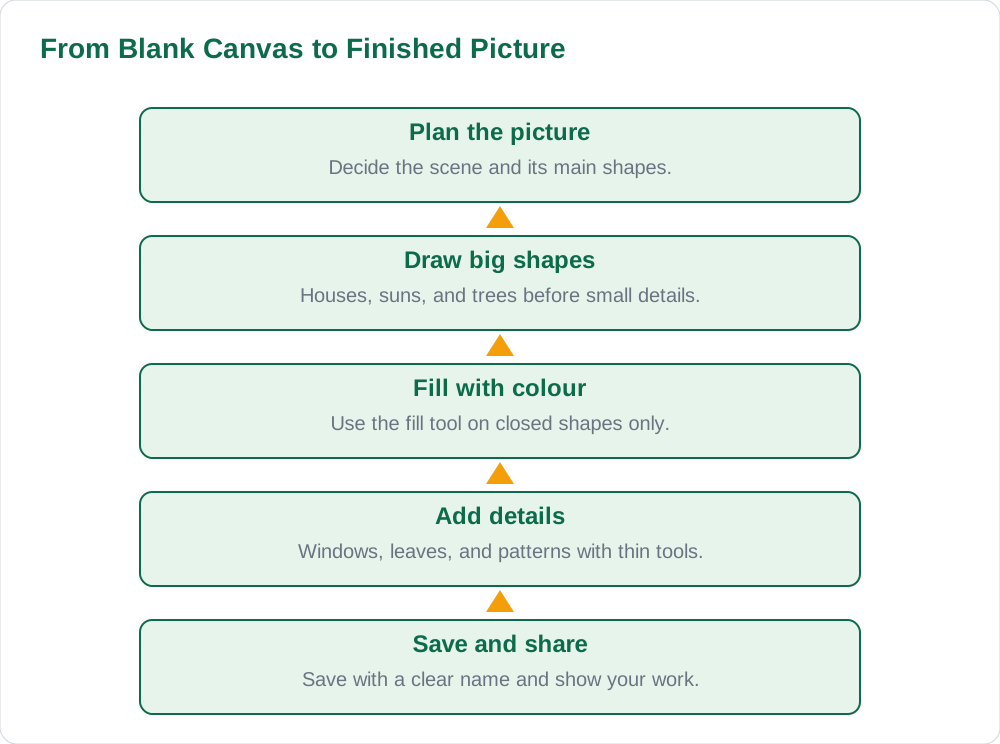
Combine simple shapes to build bigger pictures: a house is a rectangle with a triangle roof and a smaller rectangle door, a car is a rounded rectangle with two circle wheels, and a flower is a circle centre with oval petals around it. Draw large shapes first and add details afterwards, because details drawn too early get covered up or crowded. Use the zoom control to work on small details, and step back to normal view often to check the whole picture, since a detail that looks fine up close may look out of place in the full scene.
Using Colour Well
Colour is what makes digital art lively, but too many colours on one picture look messy. A good rule for beginners is to choose a small palette of four or five colours that suit the scene, such as blue sky, green grass, yellow sun, brown tree trunk, and red flowers, and reuse them consistently. The fill tool colours only a fully closed shape, so if colour spills across the whole canvas, look for a tiny gap in the outline and close it before filling again. This one tip solves the most frustrating problem beginners face in paint programs.
Think about light and contrast as well. Dark outlines help shapes stand out against light backgrounds, and a bright object against a darker background draws the eye. Avoid filling neighbouring areas with colours that are almost the same, because the shapes will blend together and the picture will look flat. If your program offers custom colours, try mixing a colour that is slightly darker for shadows, which adds depth without needing advanced tools. Simple, thoughtful colour choices beat a rainbow of random colours every time.
Adding Text, Details and a Scene
Text turns a picture into a poster or a labelled project. Use the text tool to click on the canvas and type a title or labels, choosing a clear font and a size that can be read from a distance. Keep text short: a title, a few labels, and perhaps one line of explanation are enough. Place text where it does not cover the main subject, and use a colour that contrasts with the background so it stays readable. For school projects, a labelled diagram, such as parts of a flower or a simple map, is often more impressive than a pretty picture alone.
Details bring a scene to life, but they should be added last and sparingly. A few birds in the sky, grass strokes at the bottom, and a path to a door can turn a set of shapes into a place, while dozens of extra decorations make the picture busy and confusing. Work from background to foreground: sky first, then distant objects, then the main subject, then small foreground details. When the picture feels complete, stop: overworking a drawing is a common beginner mistake, and a clean, simple picture usually looks better than a crowded one.
Saving, Printing and Showing Your Art
Saving correctly matters as much as drawing well. Save your picture with a clear name that includes the topic and your name, such as My House Drawing Ali, and save it in your Computer subject folder rather than leaving it on the desktop. Common picture formats include PNG, which keeps colours sharp and is good for schoolwork, and JPEG, which makes smaller files for sharing. If your teacher asks for a specific format, follow that instruction, and always keep the original file so you can edit it later.
Before printing, check the picture at full size to catch stray marks or half-erased shapes, and use Print Preview to confirm it fits the page nicely. Showing your work is part of the fun: present it to your class, explain the shapes and colours you chose, and accept feedback gracefully, because other students often notice improvements you missed. Digital art is a skill that grows with practice, and every picture teaches you something about shapes, colour, and patience. For more guides, visit Solved Notes, Books, and the [home page](/).
AI Help: Muse AI
Muse AI is Meta's personal AI assistant, and it can help you plan digital art by suggesting simple scenes to draw, such as a house, a garden, or a labelled diagram for a school project. You can ask it for ideas about which shapes to combine, which colours suit a scene, or how to label the parts of a diagram clearly. Muse AI does not give official STBB answers — always verify against your STBB book and your teacher. Always verify against your Sindh Textbook Board book and your teacher before using anything in classwork.
Join Muse with invite code LTGSWD — in the Muse app, go to Settings > Redeem token and enter the code. Disclosure: LTGSWD is the author's Muse invite code.
5 key points you must know
- Learn the core tools first: pencil, brush, shapes, fill, eraser, and undo.
- Hold Shift while dragging to draw perfect squares and circles.
- Build pictures from simple shapes: big shapes first, details last.
- Use a small palette of four or five colours and close outlines before filling.
- Save as PNG for sharp schoolwork, with a clear name in your subject folder.
Frequently asked questions
How do I open a paint program on my computer?
On most Windows computers, open the Start menu and search for Paint, then click the program to open a blank canvas. The window shows a toolbar with drawing tools at the top, a colour palette, and the canvas in the middle. If your school computer has a different drawing program, ask your teacher which one to use, because the tools work in a similar way.
Why does the fill colour spill across my whole picture?
The fill tool colours everything connected to the area you click, so a tiny gap in the outline lets the colour escape across the canvas. Zoom in and look carefully for the gap, close it with the pencil or line tool, and then fill again. Drawing outlines carefully and checking for gaps before filling will prevent this frustrating problem.
How do I draw a perfect circle?
Select the ellipse tool, then hold down the Shift key while you click and drag on the canvas. Holding Shift forces the ellipse to stay perfectly round instead of stretching into an oval. The same trick works for squares: hold Shift while dragging the rectangle tool and you get a perfect square instead of a rectangle.
What is the best format to save my drawing?
PNG is a good choice for schoolwork because it keeps colours sharp and edges clean. JPEG makes smaller files, which is useful for sharing online, but it can slightly blur fine lines. Save the original file in your Computer folder, and if your teacher asks for a specific format, follow that instruction exactly.
How can I make my picture look less messy?
Use fewer colours, draw big shapes before details, and stop when the picture feels complete. A small palette of four or five colours looks tidier than a rainbow of random colours, and details added sparingly bring a scene to life without crowding it. Step back to normal zoom often to judge the whole picture, not just one corner.
Solved notes — preview free
These guides work best with the solved exercises. Preview the solved notes free on this website — 119 solved notes for Classes 6–10 in Sindhi, Urdu, English and Arabic medium. Or browse the full solved notes catalogue for your class and medium. New solved notes are added regularly — check the catalogue for coming-soon books.