MS Word for Students: Documents From Blank Page to Print
Microsoft Word is the program most students meet first when they start working on a computer, and it is the tool behind homework, assignments, essays, and class notes. A blank Word document can look intimidating, but it is really just a digital sheet of paper with helpful tools arranged around it. Once you know how to type, select, format, save, and print, you can produce neat work that is easy for a teacher to read and easy for you to revise. This guide walks you through the whole journey, from opening a blank page to holding a printed copy in your hand, using simple steps that work in any common version of Word.
Opening Word and Starting a Blank Document
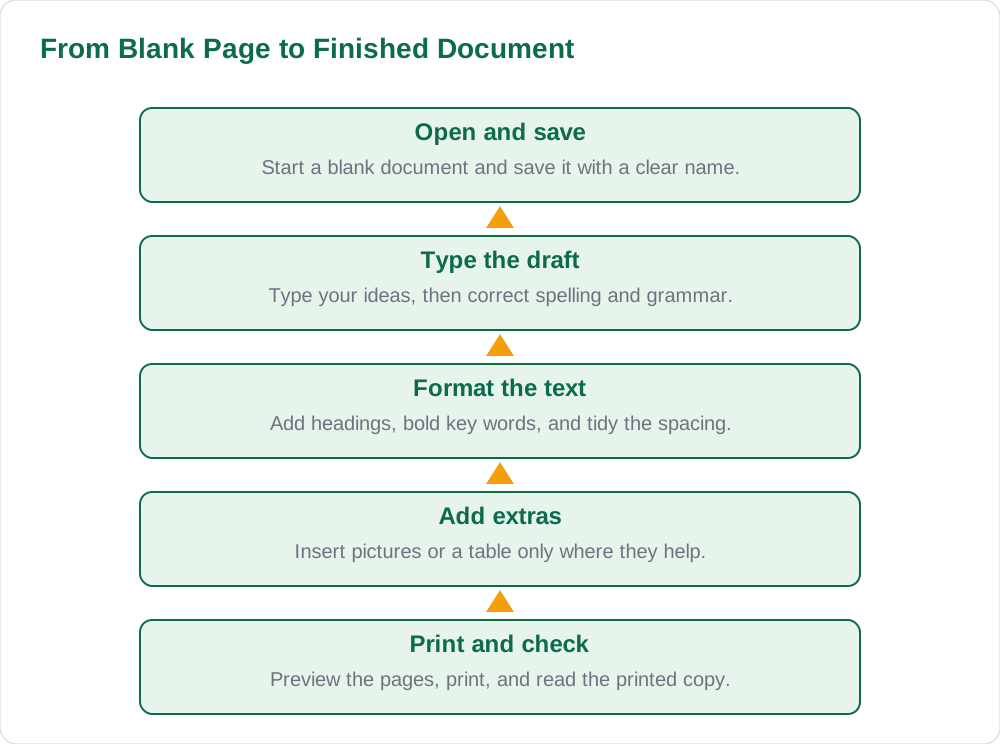
To begin, open Microsoft Word from the Start menu or the taskbar, and choose a blank document from the start screen. You will see a white page with a blinking cursor at the top left, which shows where your typing will appear. The ribbon at the top of the window holds the tools you need: the Home tab for font and paragraph settings, the Insert tab for pictures and tables, and the Layout tab for margins and page size. You do not need to learn every button at once. For your first document, the typing area, the Home tab, and the Save button are enough to get started with confidence.
Before you type a long assignment, it helps to set two simple things: the font and the page size. A plain, readable font such as Calibri or Times New Roman in size 12 or 14 is a safe choice for schoolwork, because teachers can read it easily and it looks professional. You can change the font from the Home tab before you start typing, or select your text afterwards and change it then. Saving early is another good habit: press Ctrl + S, give your file a clear name such as English Essay Class 8, and save it in a folder you can find again. Saving early protects your work if the computer restarts unexpectedly.
- Open Word and choose a blank document from the start screen
- Use the Home tab for font, size, bold, and alignment
- Press Ctrl + S early and give the file a clear, findable name
Typing, Selecting and Correcting Your Text
Typing in Word works like typing on paper, except that mistakes are easy to fix. The cursor moves as you type, and the Backspace key removes characters to the left while the Delete key removes characters to the right. When you reach the end of a line, Word moves to the next line automatically, so you only need to press Enter to start a new paragraph. If you want to change a word, double-click it to select it, then type the replacement. To select a whole sentence or paragraph, click and drag across the text with the mouse, or hold Shift and use the arrow keys for precise selection.
Word also helps you catch errors while you type. A red wavy underline usually means a spelling mistake, and a blue or green underline often points to a grammar issue. Right-clicking an underlined word shows suggestions you can accept or ignore, but remember that the checker is a helper, not a teacher: it can miss a wrong word that happens to be spelled correctly, such as writing their instead of there. Reading your work aloud after typing is still the best way to catch mistakes. For more study material and solved notes, students can browse Solved Notes and the full collection on Books.
Formatting: Headings, Bold and Paragraphs
Formatting is what turns plain typed text into a document that looks organised and is pleasant to read. Headings are the most important formatting tool for schoolwork: use a larger, bold heading for the title and slightly smaller headings for each section, so a reader can see the structure at a glance. Word's built-in heading styles on the Home tab apply a consistent size and colour with one click, which keeps all your headings matching. Bold, italic, and underline should be used sparingly, to emphasise a key word or a book title, not to decorate every sentence.
Paragraph formatting matters just as much as font formatting. Align your main text to the left, which is the standard for English schoolwork, and leave a blank line or a small space between paragraphs so each idea stands apart. Line spacing of 1.15 or 1.5 makes a long assignment easier to read and leaves room for a teacher's comments. Bulleted and numbered lists are useful when you present steps, points, or examples, because they break a wall of text into clear pieces. A document that uses headings, sensible spacing, and short lists will always look better than one long block of unbroken text, even if the words are the same.
Adding Pictures, Tables and Page Numbers
Pictures and tables can strengthen a document, but only when they serve the content. To add a picture, use the Insert tab, choose Pictures, and pick an image from your computer; you can then drag its corners to resize it and use the wrapping options to place it neatly beside or between paragraphs. Always add a short caption under a picture, explaining what it shows, so the reader understands why it is there. A picture copied from the internet should be used only when your teacher allows it, and school projects should never use someone else's work without credit.
Tables are useful for comparing information or presenting data, such as a timetable or a list of results. From the Insert tab you can insert a table with the number of rows and columns you need, then type directly into its cells. Page numbers, added from the Insert tab, help a teacher keep a long assignment in order and show that you have taken care with presentation. Keep extras simple: one or two well-chosen pictures and one clear table will improve a document, while a page crowded with decorations will distract the reader from your actual work.
Saving, Previewing and Printing
Saving correctly is the habit that protects all your hard work. Save your document in a folder named for the subject, and use a file name that includes the topic and the class, so you can find it weeks later. Press Ctrl + S regularly while you work, not only at the end, and if you are using a school computer, save a copy to a USB drive or your own storage before you leave. Word can also save a document as a PDF, which is a good choice when you want the layout to stay exactly the same on another computer or when a teacher asks for a PDF copy.
Before printing, always open Print Preview, which shows exactly how each page will look on paper. Check that no heading sits alone at the bottom of a page, that pictures are not cut off, and that the page count matches what you expect. Then print one copy, read it on paper, and correct any mistake you spot, because errors are easier to notice on a printed page than on a screen. A printed assignment with clean margins, clear headings, and no spelling mistakes tells a teacher that you took the work seriously. For guidance on organising all your school files, see our guide on the [home page](/) and the study resources on Books.
AI Help: Muse AI
Muse AI is Meta's personal AI assistant, and it can help you plan a Word document by turning your rough ideas into a clear outline of headings before you start typing. For example, you can ask it to suggest a simple structure for an essay, to explain a difficult topic in easy words, or to check whether your paragraphs flow in a sensible order. Muse AI does not give official STBB answers — always verify against your STBB book and your teacher. Always verify against your Sindh Textbook Board book and your teacher before using anything in classwork.
Join Muse with invite code LTGSWD — in the Muse app, go to Settings > Redeem token and enter the code. Disclosure: LTGSWD is the author's Muse invite code.
5 key points you must know
- Start with a blank document, a readable font, and an early save with a clear name.
- Type naturally and let Word wrap lines; press Enter only for a new paragraph.
- Use heading styles, sensible spacing, and short lists to organise your work.
- Add pictures and tables only where they help, with a caption for each picture.
- Preview before printing, then read the printed copy to catch final mistakes.
Frequently asked questions
How do I start a new document in MS Word?
Open Microsoft Word and choose a blank document from the start screen, or press Ctrl + N inside Word for a fresh page. A blinking cursor appears at the top left of the page, showing where your typing will go. Save the file early with Ctrl + S and a clear name so your work is protected from the very start.
What font and size should students use for schoolwork?
A plain font such as Calibri or Times New Roman at size 12 or 14 is a safe choice for assignments. These fonts are easy to read and look professional, which matters when a teacher marks many papers. Avoid fancy or decorative fonts for schoolwork, and keep headings only slightly larger than the main text.
How do I fix a spelling mistake in Word?
Word underlines possible spelling mistakes with a red wavy line while you type. Right-click the underlined word to see suggestions and click the correct one, or double-click the word and type the correction yourself. Always read your work aloud afterwards, because the checker can miss a word that is spelled correctly but used wrongly.
How can I add a picture to my document?
Use the Insert tab, choose Pictures, and select an image saved on your computer. Drag the corners to resize it, and use the wrapping options to place it neatly beside or between paragraphs. Add a short caption underneath explaining what the picture shows, and only use pictures your teacher allows for the assignment.
Why should I preview before printing?
Print Preview shows exactly how each page will look on paper, so you can catch problems before wasting paper. Check that headings are not stranded at the bottom of a page, pictures are not cut off, and the page count is correct. Printing one copy and reading it on paper also helps you spot mistakes that are easy to miss on screen.
Solved notes — preview free
These guides work best with the solved exercises. Preview the solved notes free on this website — 119 solved notes for Classes 6–10 in Sindhi, Urdu, English and Arabic medium. Or browse the full solved notes catalogue for your class and medium. New solved notes are added regularly — check the catalogue for coming-soon books.