MS Excel: Making a Marks Sheet Step by Step

A marks sheet is one of the most useful things a student can build in Microsoft Excel, because it turns a jumble of test scores into clear, organised information. Whether you want to track your own marks across subjects, or a class monitor wants to prepare a result sheet, Excel does the adding and averaging for you, and it updates every total automatically when a mark changes. This guide shows you how to build a complete marks sheet from scratch: setting up columns, entering marks carefully, using simple formulas for totals, percentages, and averages, and formatting the result so it looks clean and professional.
Understanding Rows, Columns and Cells
An Excel workbook is made of worksheets, and each worksheet is a grid of rows and columns. Rows run across and are numbered 1, 2, 3, while columns run down and are labelled A, B, C. Where a row and a column meet, you get a cell, named by its column letter and row number, such as B5. Clicking a cell selects it, and the Name Box near the top left shows which cell is active. Typing in a cell and pressing Enter moves you down to the next cell, while pressing Tab moves you right, which makes entering a whole row of marks quick and natural.
For a marks sheet, the grid becomes a table: the first row holds headings, the first column holds student names, and the remaining columns hold marks for each subject. Keeping this structure consistent is the secret of a good spreadsheet. Never mix headings into the middle of your data, and never leave a blank row inside the table, because formulas and sorting work best on one continuous block of data. Once you understand that every piece of information has its own cell, Excel stops feeling complicated and starts feeling like a smart notebook.
Setting Up the Marks Sheet Layout
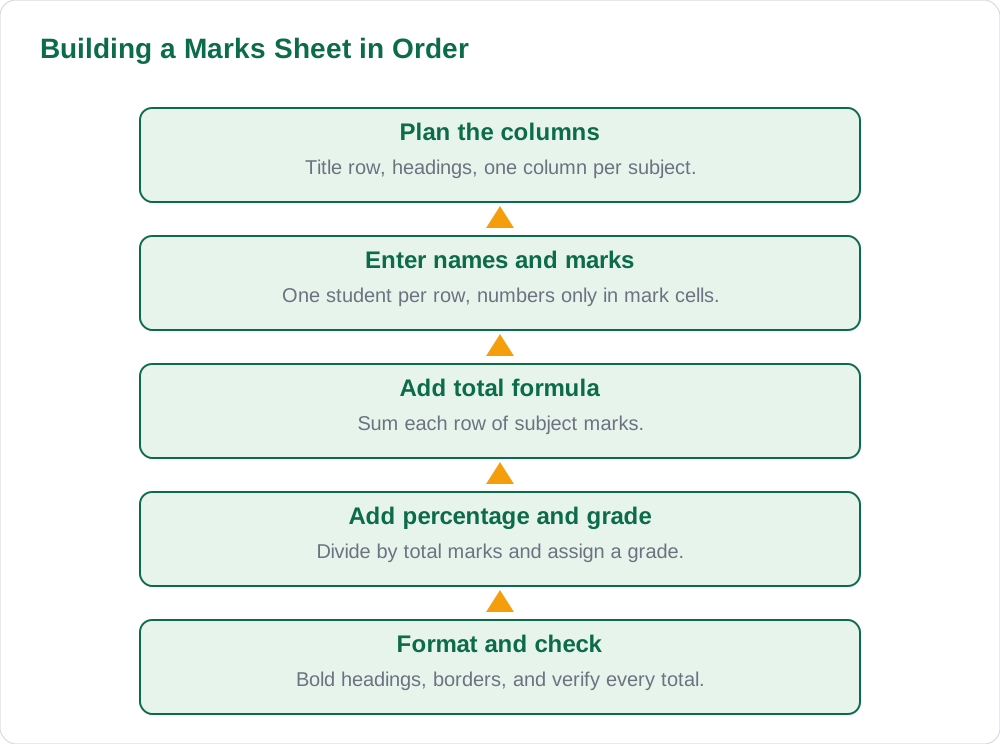
Start by typing a title in the first row, such as Class 8 First Term Result, and then type your column headings in the second row: Roll No, Student Name, English, Urdu, Mathematics, Science, Islamiat, Total, Percentage, and Grade. Widen any column that cuts off its heading by double-clicking the boundary between column letters in the header row, which auto-fits the width. Make the heading row bold so it stands out, and consider giving it a light fill colour so the reader can tell headings from data at a glance.
Next, enter the roll numbers and student names down the first two columns, one student per row. Enter marks as plain numbers only, without adding symbols or words inside a mark cell, because formulas need numbers to calculate. If a student was absent, decide on one consistent rule before you start, such as entering zero and adding a note, and apply it to every absent case. Careful, consistent data entry is more important than fancy formatting: a marks sheet with clean data will always calculate correctly, while a sheet with mixed text and numbers will produce errors that are hard to trace.
Formulas for Total, Percentage and Average
Formulas are what make Excel powerful, and every formula begins with an equals sign. To find a student's total, click the Total cell for that row and type a formula that adds the subject cells, for example =SUM(C3:G3) if the marks run from column C to column G in row 3. Press Enter and Excel shows the result; if you later correct a mark, the total updates by itself. The SUM function is the workhorse of a marks sheet, and learning it alone will save you from adding long columns by hand and making arithmetic slips.
Percentage is just as simple once you know the total marks available. If five subjects each carry 100 marks, the full total is 500, so the percentage formula for a row is the student's total divided by 500, multiplied by 100, which you can write as =H3/500*100 if the total sits in column H. For an average, the AVERAGE function does the work: =AVERAGE(C3:G3) gives the mean mark across the subjects. After entering a formula for the first student, you can copy it down the whole column by dragging the small square at the bottom right corner of the cell, called the fill handle, and Excel adjusts the row numbers automatically.
Grades, Sorting and Simple Checks
Grades turn raw numbers into a quick summary of performance, and you can assign them with a simple rule that you apply consistently. A common school scale gives A to 80 percent and above, B to 70 and above, C to 60 and above, and so on, but you should always follow the grading scale your own school uses rather than inventing one. You can type grades by hand for a small class, or use the IF function to assign them automatically from the percentage. Either way, check a few grades against the percentages by eye before you trust the whole column.
Sorting lets you see who scored highest or find a particular student quickly. Select the whole table including headings, then use the Sort command on the Data tab, choosing the Total or Percentage column and largest to smallest. Sorting only one column by itself is a common mistake, because it scrambles names away from their marks, so always select the full table first. Finally, run simple checks: scan for totals above the maximum possible, look for blank mark cells, and compare two or three totals by hand. A marks sheet that passes these checks can be trusted.
Formatting, Printing and Saving the Sheet
Formatting makes your marks sheet readable and presentable. Add borders around the table so each cell is clear, centre the marks inside their cells, and bold the heading row and the total column. Keep colours gentle: a light heading colour and plain white data cells look professional, while bright colours on every cell look messy. Freeze the heading row, using the Freeze Panes command on the View tab, so headings stay visible when you scroll through a long list of students, which is a small trick that makes a big difference.
Before printing, use Page Setup on the Layout tab to fit the sheet to one page wide, and preview the result so no column is cut off at the edge. Save the file with a clear name, such as Class 8 First Term Marks, and save it in your subject folder alongside your other school work. Press Ctrl + S often while working. A well-formatted, saved, and checked marks sheet is a skill you will reuse in every class, and it is excellent practice for computer examinations too. For more study resources, visit Solved Notes, browse Books for class material, and explore the study tips on the blog section.
AI Help: Muse AI
Muse AI is Meta's personal AI assistant, and it can help you build a marks sheet by explaining Excel formulas in plain words, such as what SUM and AVERAGE do and how to copy a formula down a column. You can ask it to walk through a percentage calculation step by step, or to suggest a tidy column layout for your own class result sheet. Muse AI does not give official STBB answers — always verify against your STBB book and your teacher. Always verify against your Sindh Textbook Board book and your teacher before using anything in classwork.
Join Muse with invite code LTGSWD — in the Muse app, go to Settings > Redeem token and enter the code. Disclosure: LTGSWD is the author's Muse invite code.
5 key points you must know
- A worksheet is a grid: rows are numbered, columns are lettered, and each cell has an address.
- Set up headings first, one student per row, and enter marks as plain numbers only.
- Use SUM for totals, division for percentages, and AVERAGE for mean marks.
- Copy formulas down with the fill handle and check a few results by hand.
- Format with borders and a bold heading row, then preview before printing.
Frequently asked questions
What is a cell in Excel?
A cell is the box where one row and one column meet, named by its column letter and row number, such as C5. You click a cell to select it, type your value, and press Enter to move down or Tab to move right. Every name, mark, and formula in a marks sheet lives in its own cell, which is why Excel can calculate and sort your data so easily.
How do I add up marks with a formula?
Click the Total cell for a student and type a formula beginning with an equals sign, such as =SUM(C3:G3), where C3:G3 is the range of subject marks in that row. Press Enter and Excel displays the total. If you later change any mark, the total updates automatically, which is far more reliable than adding by hand.
How do I calculate percentage in a marks sheet?
Divide the student's total by the maximum possible total and multiply by 100. If five subjects each carry 100 marks, the formula is the total cell divided by 500, multiplied by 100. For example, a total of 400 out of 500 gives 80 percent. Keep the maximum total consistent for every student so percentages are comparable.
How do I copy a formula to all students?
After entering a formula for the first student, click that cell and drag the small square at its bottom right corner, called the fill handle, down the whole column. Excel copies the formula and adjusts the row numbers automatically, so each student gets their own correct total. Check two or three copied results by hand before trusting the full column.
Why does my formula show an error?
The most common cause is text inside a mark cell, such as typing absent or a dash instead of a number, because formulas need numbers to calculate. Another cause is a missing bracket or a mistyped cell address. Check the cells the formula refers to, make sure every mark is a plain number, and retype the formula carefully if the error remains.
Solved notes — preview free
These guides work best with the solved exercises. Preview the solved notes free on this website — 119 solved notes for Classes 6–10 in Sindhi, Urdu, English and Arabic medium. Or browse the full solved notes catalogue for your class and medium. New solved notes are added regularly — check the catalogue for coming-soon books.