Files and Folders: Organising School Work on a Computer
Every student who uses a computer eventually faces the same problem: an assignment that was finished yesterday but cannot be found today. Files end up on the desktop, in the downloads folder, or saved under names like Document1, and the result is wasted time, duplicated work, and sometimes lost marks. Organising files is not a boring chore; it is a simple system that, once set up, saves you effort for the rest of your school life. This guide shows you how to build a folder structure for your subjects, name files so you can find them, and back up your work so it is never lost.
Why Organisation Matters for Students
A computer stores thousands of files, and without a system, finding one file becomes a search through a haystack. Students lose time hunting for homework, resubmit the wrong draft, or discover too late that the only copy of an essay was on a school computer they no longer use. An organised system fixes all three problems at once: every file has one home, every file name tells you what it is, and every important file has a backup copy somewhere else. The time you spend setting up folders once is repaid every single day you use the computer.
Organisation also improves the quality of your work. When drafts, final versions, and teacher feedback live in sensible places, you can revise an essay without mixing up versions, and you can look back at old work to see how you have improved. Teachers notice the difference too: an assignment submitted with a clear file name and correct format looks professional, while a file named Document1 suggests carelessness even when the content is good. Good file habits are a quiet form of good study habits, and they cost nothing to build.
Building a Simple Folder System
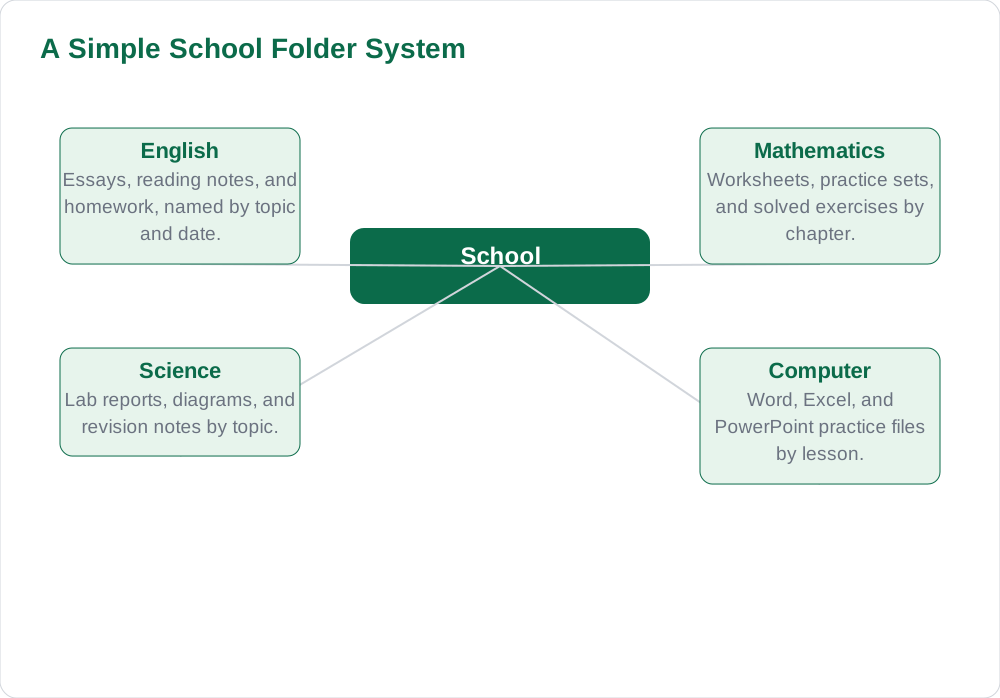
Start with one main folder called School, placed in your Documents folder or another place you can reach easily. Inside School, create one folder per subject: English, Urdu, Mathematics, Science, Islamiat, and Computer, matching your actual timetable. Inside each subject folder, you can add subfolders for terms or types of work if you need them, such as Homework, Assignments, and Notes, but do not go deeper than two or three levels, because a maze of nested folders is almost as hard to search as no folders at all.
To create a folder in Windows, open File Explorer, go to the location you want, right-click in an empty area, and choose New and then Folder, then type a clear name. Keep folder names short, plain, and consistent, using the subject name rather than abbreviations only you understand. Move existing files into their subject folders now, rather than leaving them scattered on the desktop: select a file, cut it with Ctrl + X, open the right folder, and paste it with Ctrl + V. Within an hour, a messy desktop can become a tidy set of subject folders.
Naming Files So You Can Find Them
A good file name answers three questions at a glance: what is it, whose is it, and which version is it. A pattern such as Subject Topic Name works well, for example English Essay My Favourite Book Ali, or Mathematics Chapter 4 Practice Ali. Adding the date helps when you revise the same work over time, and adding the word Final to the finished version prevents you from submitting an early draft by mistake. Avoid vague names like Document1, New File, or Untitled, which tell you nothing a week later.
Keep file names free of characters that cause problems, such as slashes, question marks, and asterisks, and use letters, numbers, spaces, hyphens, and underscores. Save files in the right format for their purpose: a Word document for writing you will edit again, a PDF when the layout must stay fixed, and a spreadsheet file for tables and marks. When a teacher asks for a specific format, follow that instruction exactly, because submitting the wrong format can mean your work cannot be opened or marked.
Backing Up Your Work
A backup is simply a second copy of your work stored somewhere else, and it is the only protection against a lost USB drive, a broken computer, or an accidental deletion. The simplest backup habit is the weekly copy: once a week, copy your whole School folder to a USB drive or another storage device and keep that device in a safe place. If your school allows it, a cloud storage account gives you an automatic second copy that you can reach from any computer, which is especially useful when you work on both a school and a home computer.
Backups also protect you from your own mistakes. If you overwrite a good essay with a bad edit, a backup copy lets you recover the earlier version. To make this easier, keep older drafts instead of deleting them immediately, and use version words in file names, such as Draft, Revised, and Final. Test your backup occasionally by opening a file from it, because a backup you have never tested is only a hope, not a guarantee. Students who back up regularly never face the nightmare of rewriting a finished assignment from memory.
Searching, Cleaning and Daily Habits
Even a good system needs occasional cleaning. Once a month, delete duplicate files, empty the Recycle Bin of files you truly no longer need, and move finished term work into an archive folder for that term. If you cannot find a file, use the search box in File Explorer and type part of the file name or a word from inside the document, which is much faster than opening folder after folder. Sorting a folder by date or by name can also help you spot the most recent version quickly.
Build three small daily habits and organisation becomes effortless: save every new file into its subject folder immediately, give it a clear name at the moment of saving, and press Ctrl + S often while working. Never save schoolwork only on the desktop, because desktops get cluttered and files saved there are easy to delete by accident. A tidy computer reflects a tidy mind, and teachers can tell. For more school computer guides, visit Solved Notes, Books, and the blog for study tips.
AI Help: Muse AI
Muse AI is Meta's personal AI assistant, and it can help you organise school work by suggesting a folder layout for your subjects or a clear naming pattern for your files. You can ask it to plan a weekly backup routine, to explain the difference between file formats, or to help you sort a messy list of assignments into subjects and dates. Muse AI does not give official STBB answers — always verify against your STBB book and your teacher. Always verify against your Sindh Textbook Board book and your teacher before using anything in classwork.
Join Muse with invite code LTGSWD — in the Muse app, go to Settings > Redeem token and enter the code. Disclosure: LTGSWD is the author's Muse invite code.
5 key points you must know
- Create one School folder with one subfolder per subject, no deeper than three levels.
- Name files by subject, topic, and your name, and mark the finished version as Final.
- Back up your School folder weekly to a USB drive or approved cloud storage.
- Clean monthly: delete duplicates, archive finished term work, and empty the Recycle Bin.
- Save into the right folder immediately, with a clear name, and press Ctrl + S often.
Frequently asked questions
Where should I save my schoolwork?
Save it in a School folder inside your Documents folder, with one subfolder per subject. This keeps homework away from downloads and the desktop, where files are easily lost. Every new file should go straight into its subject folder at the moment you save it, not later when you have forgotten where it belongs.
What is a good file name for an assignment?
A good file name states the subject, the topic, and your name, such as English Essay My Favourite Book Ali. Adding the word Final to the finished version prevents you from submitting an early draft by mistake. Avoid vague names like Document1, and avoid characters such as slashes and question marks that can cause problems.
How often should I back up my work?
Back up at least once a week, and immediately after finishing any major assignment. Copy your whole School folder to a USB drive or an approved cloud account, and keep that backup in a safe place. Test the backup occasionally by opening a file from it, because an untested backup is only a hope, not a guarantee.
How do I find a file I cannot locate?
Use the search box in File Explorer and type part of the file name or a word from inside the document. You can also sort a folder by date to find the most recent version, or by name to group similar files together. If you still cannot find it, check the Downloads folder and the desktop, where misplaced files usually end up.
Should I delete old drafts?
Keep drafts until the final version is submitted and marked, because a draft can save you if the final file is damaged or overwritten. Once a term is finished, move old drafts into an archive folder for that term rather than deleting them immediately. Delete only true duplicates and files you are certain you will never need again.
Solved notes — preview free
These guides work best with the solved exercises. Preview the solved notes free on this website — 119 solved notes for Classes 6–10 in Sindhi, Urdu, English and Arabic medium. Or browse the full solved notes catalogue for your class and medium. New solved notes are added regularly — check the catalogue for coming-soon books.