Email for Students: Account, Compose and Send
Email remains one of the most important tools in school and work life, because it is the formal way to ask a teacher a question, submit an assignment, or apply for a programme. Unlike a chat message, an email is a written record that can be read later, forwarded, and filed, so it deserves a little more care. Many students use email for the first time without ever being taught how, which leads to missing subjects, unclear messages, and forgotten attachments. This guide covers the whole process: creating an account safely, writing a clear and polite message, attaching files correctly, and keeping your inbox under control.
Creating an Email Account Safely
Creating an email account starts with choosing a reputable provider and a sensible username. For school use, pick a simple address based on your name, such as firstname.lastname, rather than a nickname or joke name, because teachers and schools take a professional-looking address more seriously. During sign-up, you will be asked for a password: make it long and unique, and never reuse a password from another account. If you are under the age the provider requires, ask a parent to help you create the account, and keep the recovery phone number or email up to date so you can regain access if you forget your password.
After creating the account, spend a few minutes on the settings. Turn on two-step verification if the provider offers it, because it protects your account even if someone learns your password. Check the privacy settings and decide what personal information your profile shows to others. Write your full name correctly in the account settings, since that name appears on every email you send, and a misspelt name looks careless. Finally, sign out whenever you use a shared or school computer, so the next user cannot open your inbox.
Understanding the Inbox: To, Cc and Subject
Every email has three address fields, and knowing the difference matters. The To field holds the main recipient, the person you expect to reply. The Cc field, which stands for carbon copy, holds people who should see the message but are not expected to act on it, such as copying a parent on a message to a teacher. The Bcc field hides recipients from each other, and students rarely need it; using it without understanding can cause confusion, so leave it alone unless a teacher explains it. Always double-check the address before sending, because one wrong letter sends your message to a stranger.
The subject line is the most important sentence in your email, because it tells the reader what the message is about before they open it. A good subject is short and specific, such as Homework Question: Class 8 Mathematics Chapter 4, rather than a vague word like Help or Question. Teachers receive many emails, and a clear subject helps them find and prioritise yours. Never leave the subject blank, and never write it in all capital letters, which reads as shouting and looks unprofessional in a school email.
Writing a Clear and Polite Message
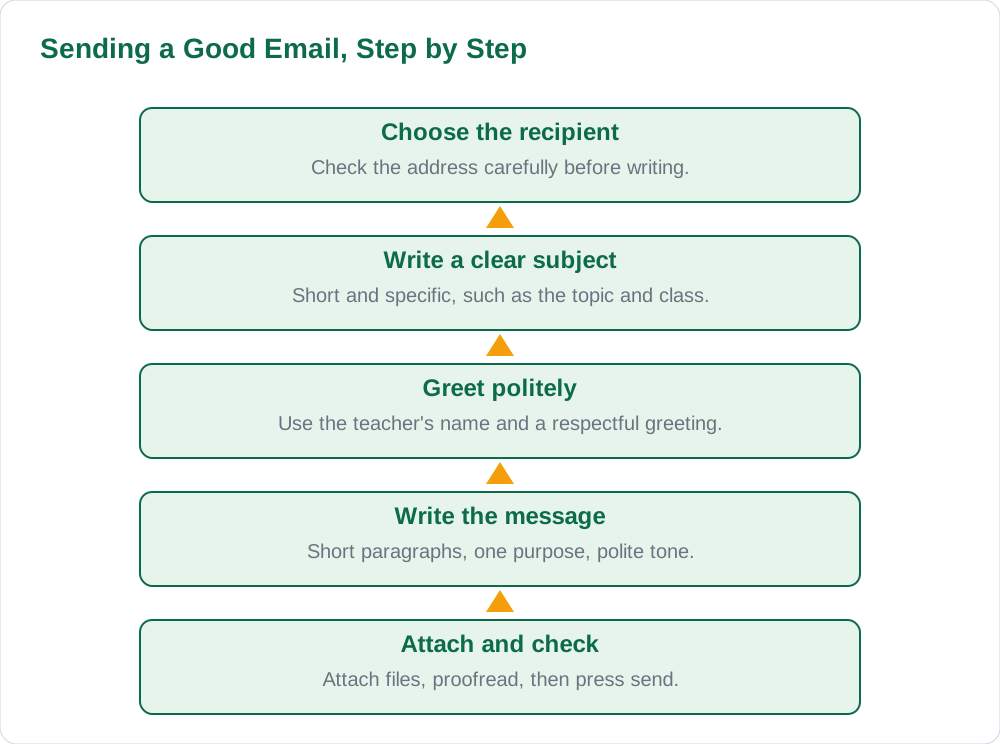
A good student email follows a simple structure: a greeting, a short introduction, the main point, and a polite closing. Begin with a respectful greeting using the teacher's name, such as Dear Sir or Dear Madam, or Dear Mr Ahmed if you know the name. Then state your purpose in the first two sentences, so the reader does not have to guess why you are writing. For example, I am writing to ask about question 5 of Chapter 4, which I found difficult, is far better than a long story that buries the question at the end.
Keep paragraphs short, one idea per paragraph, and use a polite, formal tone throughout. Avoid slang, emojis, and texting shortcuts in school emails, because they can make a serious request look careless. End with a courteous closing, such as Thank you for your help, followed by your full name and class, so the teacher knows exactly who wrote. Before sending, read the whole email once: check the spelling, confirm the recipient, and make sure the tone is one you would be happy for any teacher to read.
Attaching Files and Submitting Work
Attachments are how students submit assignments by email, and they cause more problems than any other part of the process. Attach the file using the paperclip or attach button, then verify that the file name is correct and that it is the final version, not an early draft. Give the file a clear name that includes your name, class, and topic, such as Ali Class 8 English Essay, because a file named Document1 tells the teacher nothing. If the assignment is long, saving it as a PDF keeps the layout the same on the teacher's computer.
After attaching, mention the attachment in your message, for example, I have attached my essay as requested, so the reader knows to look for it. Then open the attachment once from your own sent folder to confirm it opens correctly, because a corrupted or empty file is a common reason for lost marks. If the file is very large, ask your teacher whether a different method is preferred, since some inboxes reject large attachments. Never assume an assignment is submitted just because you pressed send: check your Sent folder to confirm the message actually left your inbox.
Managing Your Inbox and Staying Safe
A tidy inbox saves time and prevents missed messages. Read new emails daily during term time, reply promptly to teachers, and delete or archive messages you no longer need. Use folders or labels for subjects, so you can find an old message in seconds instead of scrolling through hundreds of emails. If your inbox fills with newsletters or promotions, unsubscribe from the ones you never read, because a cluttered inbox makes it easy to miss an important school message.
Safety rules apply to email just as they do to the wider internet. Never click links or download attachments from unknown senders, never share your password by email, and be suspicious of messages claiming you won a prize or must act urgently. If an email from a teacher looks strange, check with the teacher in person before following its instructions. A calm, organised approach to email is a life skill: it keeps your school communication reliable and protects your account. For more computer guides, visit Solved Notes, Books, and the [home page](/).
AI Help: Muse AI
Muse AI is Meta's personal AI assistant, and it can help you write better emails by turning a rough idea into a polite draft with a clear subject line and a respectful greeting. You can ask it to shorten a long message, to suggest a courteous way to ask a teacher a question, or to check whether your email sounds polite and clear. Muse AI does not give official STBB answers — always verify against your STBB book and your teacher. Always verify against your Sindh Textbook Board book and your teacher before using anything in classwork.
Join Muse with invite code LTGSWD — in the Muse app, go to Settings > Redeem token and enter the code. Disclosure: LTGSWD is the author's Muse invite code.
5 key points you must know
- Choose a simple, name-based address and a long, unique password for school email.
- Use To for the main recipient, Cc for people who only need to see the message.
- Write a short, specific subject line, never a blank or vague one.
- Keep the message polite and structured: greeting, purpose, detail, courteous closing.
- Name attachments clearly, mention them in the message, and confirm from the Sent folder.
Frequently asked questions
What should I use as my email address for school?
Use a simple address based on your real name, such as firstname.lastname, with a reputable provider. Teachers and schools take a professional-looking address more seriously than a nickname or joke name. Avoid numbers and words that could embarrass you later, because a school email address may stay with you for years.
What is the difference between To and Cc?
The To field holds the main recipient, the person you expect to reply or act. The Cc field holds people who should see the message but are not expected to act, such as copying a parent on a message to a teacher. Everyone in To and Cc can see each other's addresses, so use Cc thoughtfully and never add people without a reason.
How do I write a good subject line?
A good subject line is short and specific, telling the reader the topic at a glance. For example, Homework Question: Class 8 Mathematics Chapter 4 is far better than Help or Question. Never leave the subject blank, never write it in all capitals, and include the class or topic when the message is about schoolwork.
Why did my teacher not receive my attachment?
The most common reasons are attaching the wrong file, attaching an early draft, or sending a file too large for the inbox. Always check the file name before sending, mention the attachment in your message, and confirm the message appears in your Sent folder with the attachment icon. If in doubt, ask the teacher in class whether the file arrived safely.
How do I spot a dangerous email?
Dangerous emails often come from unknown senders, promise prizes, threaten urgent action, or ask for passwords or money. Never click their links or download their attachments. Instead, delete the message or report it as spam, and check with a teacher or parent if the message claims to come from your school.
Solved notes — preview free
These guides work best with the solved exercises. Preview the solved notes free on this website — 119 solved notes for Classes 6–10 in Sindhi, Urdu, English and Arabic medium. Or browse the full solved notes catalogue for your class and medium. New solved notes are added regularly — check the catalogue for coming-soon books.